• Skip to primary navigation
  • Skip to main content
  • Skip to primary sidebar
  • About
  • Advertise and Marketing
  • Privacy
  • Terms
  • Write for us
  • Contact Us
  • Log in

TechWhich

  • News
  • Android
    • Google Play Store
  • Apple iOS
    • App Store
  • Windows
  • Reviews
  • How to
    • Guides
  • All Phones
    • Compare
    • Mobile Comparisons
  • More
    • SEO
    • Hosting
  • Travel.pk Review
You are here: Home / Guides / How To Backup iTunes Library on OS X

How To Backup iTunes Library on OS X

Muhammad Zeshan Sarwar Guides 0 Leave a Comment

Backing up your itunes is crucial nowadays as you never knows when there is a crash or hardware failure can strike. It becomes more crucial when there are thousands of dollars iTunes Purchases and a lot of files contained in your iTunes Library. So, regular backups can make your Library safe and hassle free, in case, where there is any failure happened. There are many Backup tools available online in the market and choosing the best software or app is a crucial task for keeping up the regular backups as all softwares offers different features which may or may not suite your needs. To choose the best backup utility, one must consider backing up song ratings, playlists, play counts and other metadata.

Further, one must also consider backing up on external or cloud drives for further security rather than backing up on your personal computer. Here comes a software “Immortal Files” that comes with all those features with encryption of backup files.

Let’s have a look what Immortal Files is and how to easily backup iTunes on OS X.

Immortal Files is a Solid file-by-file backup utility. It will make an exact clone of your disk in full or backup specified documents (or folders) only. It will also keep all your data safe off site (on remote servers) and on site (on external drives).

How to backup iTunes with Immortal Files:

One can backup iTunes separately or do it with regular backups. As Immortal files can backup your whole computer so you have to choose one of the options to backup it separately or regularly.. Immortal Files includes a easy-to-use shortcut for including your iTunes library.

Steps to Backup your iTunes Library:

  • Download Immortal Files and Install it.
  • Start Immortal Files.
  • Select a backup setup on the left.
  • If not already selected, select the checkbox next to Music from iTunes.
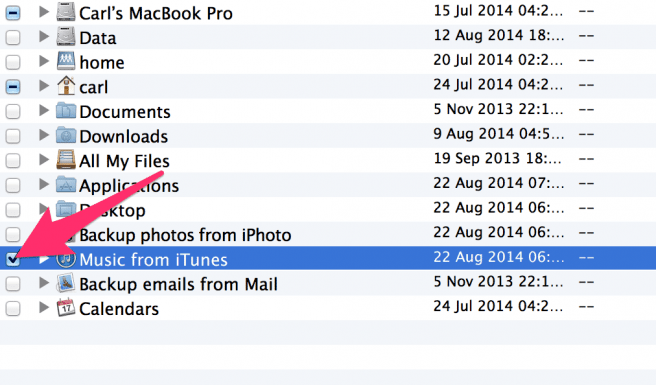
iTunes Backup

  • Navigate to Immortal Files toolbar and click on the backup Button.
  • It’s almost done. You have now to setup backup options.
  • Run The Backup and it’s done. For More Instructions visit iTunes backup guide on Immortal Files website.
NOTE: To backup music files not stored for iTunes, manually select the appropriate folder (or files) in the list.
NOTE: If you backup iTunes Music as shown in the above image then it will only backup the iTunes Library for the current user. To backup the iTunes library for another user, select the /Users/ UserName/Music/iTunes folder manually.

Stay Tuned to TechWhich for further updates and guides.

About Muhammad Zeshan Sarwar

I am a tech enthusiast working in the Mobile industry since 2012. Reporting technological innovations is my passion. Being a reporter, I always try to break stories in the industry.

Reader Interactions

Leave a Reply Cancel reply

Your email address will not be published. Required fields are marked *

Primary Sidebar

New Arrivals

  • Samsung Galaxy A33 Samsung Galaxy A33 $355.00
  • Vivo X80 Vivo X80 $795.00
  • Vivo X70 Pro Vivo X70 Pro $868.00
  • Iphone 13 Pro Max Iphone 13 Pro Max $1,500.00
  • iPhone 12 Pro Max iPhone 12 Pro Max $1,099.00
  • Nokia Lumia 525 Nokia Lumia 525 Price not available

Top Rated

  • Samsung Galaxy S5 Samsung Galaxy S5 Price not available
  • HTC One (E8) HTC One (E8) Price not available
  • LG G3 LG G3 Price not available
  • Sony Xperia Z2 Sony Xperia Z2 Price not available
  • Apple iPhone 5s Apple iPhone 5s Price not available
  • Apple iPad Mini 2 Apple iPad Mini 2 Price not available
  • LG G Pro 2 LG G Pro 2 Price not available
  • Samsung Galaxy Note 3 Samsung Galaxy Note 3 Price not available
  • Sony Xperia Z1 Sony Xperia Z1 Price not available
  • Samsung Galaxy S5 Mini Samsung Galaxy S5 Mini Price not available
  • Sony Xperia Z1 Compact Sony Xperia Z1 Compact Price not available
  • iPhone 5 iPhone 5 Price not available

Recent Compares

  • Samsung Galaxy S6 vs Apple iPhone 6 Samsung Galaxy S6 vs Apple iPhone 6 View Comparison →
  • Samsung Galaxy S5 vs iPhone 5s vs Sony Xperia Z1 Samsung Galaxy S5 vs iPhone 5s vs Sony Xperia Z1 View Comparison →
  • Sony Xperia Z2 vs LG G Pro 2 vs Samsung Galaxy Note 3 Sony Xperia Z2 vs LG G Pro 2 vs Samsung Galaxy Note 3 View Comparison →

Copyright © 2026 TechWhich. Reproduction without explicit permission is prohibited.