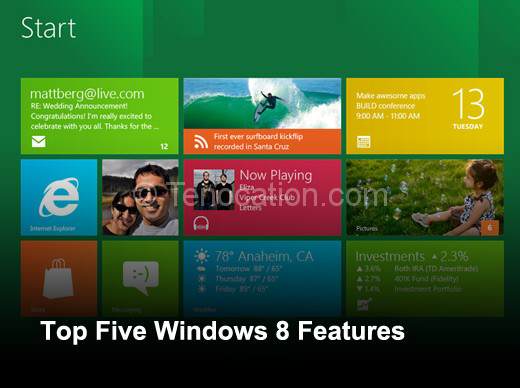
 Windows 8 is a still relativity new operating system, and with all new OS releases, they come with some hidden gems that aren’t out in the open right away, they have to be discovered. And some of these hidden features, can be very useful and convenient to the user, so without further ado, here are some Windows 8 features you may not know about.
1. Windows 8 Hidden Menu
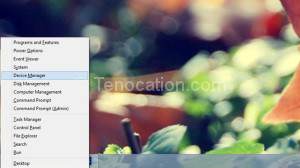
Moving your mouse to the bottom right of the screen, as 8 users know, switches you between the tablet like interface and the Windows 7 like desktop. However, if you right click on the same spot, you will be greeted with a simple, grey menu that has useful links to areas all around the operating system, areas that are usually 5 step processes to get to. Now they are in the bottom right for ease of acess, some of these are command prompt, task manager, control panel, and all that fun stuff.
2. Windows 8 Advanced Snap Feature
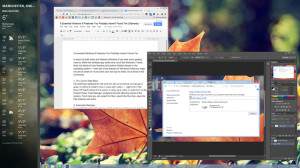
Like Windows 7, 8 also comes with a snap feature. And if you have ever used Windows 7, you should know how easy to use and convenient the snap feature is. Windows 8 has taken this feature a step further, and now when snapping programs and tasks, you minify them at the same time, they are basically turned into smaller versions of the app for ease of use, now instead of two things at once like with Windows 7 you can do 3, 4, 5, whatever you wish! multitasking just took on a whole new meaning.
3. Windows 8 File History
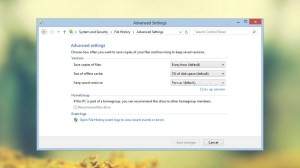
This can be a huge life safer, as a new feature in Windows 8, this program will keep track of old files and previous versions of them. If you delete something, corrupt something, or just loose it, you can recover it easliy with this program. Only downside to this is, you must have a second hard drive of some type to store these backups on, also, if you do use this be sure to enable it in System and Security section of Control Panel. As it is not on by default.
4. Re-install Windows 8!
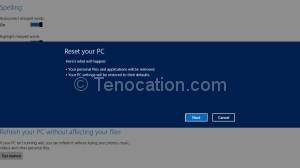
This is something I said they should integrate for years, you can finally re-install Windows within Windows 8. With a few clicks you can have your corrupted operating system re-installed in a matter of minutes. No need for boot discs, repair discs, or serial codes. There is also an option called ‘refresh’ where you can set all user settings back to default without compromising your files.
5. Windows 8 Built in screen shot creator
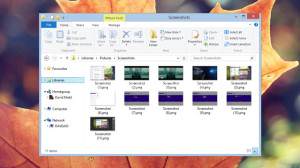
Remember the days when you needed 3rd party software to take screenshots? Or you had to press print screen, then find somewhere to paste it and save it? Well 3rd party software like Puush is still useful in precise cases, Windows 8 has a new feature that allows you to press ‘Windows Key + Print Screen’. Which will save your screen shot in your picture folder as ‘Screenshot.png’. This can be extremely useful and quick, and was a good idea on Microsoft’s part.
In addition to this, we have also written some articles on windows 8. Check them also.
- Fix Windows 8 App store errors
- Solve 10 Common Windows 8 Errors
- Things to know before moving to windows 8
Also, to help your Windows 7 to Windows 8 transition easier, here are a list of useful shortcuts, new to Windows 8:
- Win key – Toggles between Start Screen and Windows Desktop
- Win+X – Opens Quick Access Menu
- Win+PrntScr – Automatically saves screenshot in Pictures folder
- Win+C – Shows Charms Bar
- Win+I – Shows Settings panel
- Win+K – Launches Devices charm
- Win+H – Launches Share charm
- Win+Q – Launches Search charm
- Win+W – Launches Settings search page
- Win+F – Launches Files search page
- Win+Tab – Shows Metro apps switcher
- Win+Z – Shows / hides App bar at Start Screen to show all apps
- Win+Spacebar – Toggles between input languages and keyboard layout
- Win+, – From Start Screen peeks at the Desktop
- Win+Enter – Launches Narrator
- Ctrl+F1 – Minimizes / maximizes ribbon in Windows Explorer
- Ctrl+Tab – Launches All Apps list on Start Screen
While you still may be unsure about the switch over, hopefully this post has helped you make up your mind, or make your experience with Windows 8 easier, because we all know how Windows transitioning is.

I need to to thank you for this great read!! I certainly enjoyed every little bit
of it. I have got you saved as a favorite to check out new stuff you post…
I feel this is among the so much important info for me.
And i’m glad studying your article. But want to statement on some common things, The site style is perfect, the articles is actually excellent : D. Just right process, cheers
Howdy, I think your website might be having internet browser compatibility
problems. Whenever I look at your website in Safari,
it looks fine however, when opening in Internet Explorer, it has some overlapping
issues. I simply wanted to give you a quick heads up! Aside from that, wonderful site!
I’ll immediately clutch your rss feed as I can’t find your email subscription hyperlink or newsletter service.
Do you have any? Kindly let me understand so that I may just subscribe.
Thanks.
Does your website have a contact page? I’m having a tough time locating it but, I’d like to send
you an email. I’ve got some creative ideas for your blog you might be interested in hearing. Either way, great website and I look forward to seeing it grow over time.